

Content per schedule
2 tiles per schedule. In a schedule, click Add content block once for each tile. The count shows how many you’ve added, for example Add content block (1/2). Once both tiles are added, Block Hero shows Content limit reached (2/2).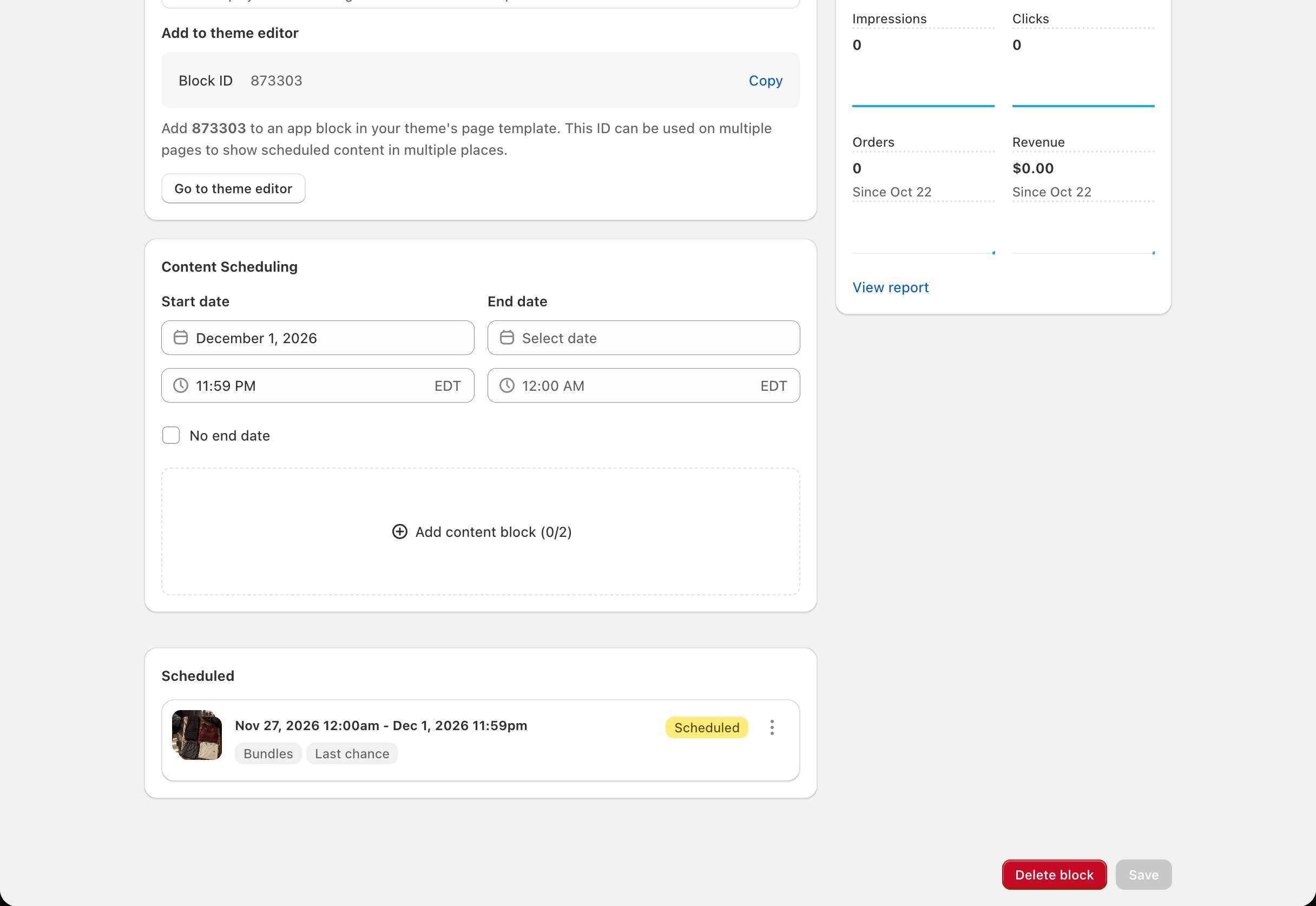
What you schedule in Block Hero
Each tile is a content block. The Add content block window has these fields. Each tile needs a Content Name and a Desktop Image. The Mobile Image is optional.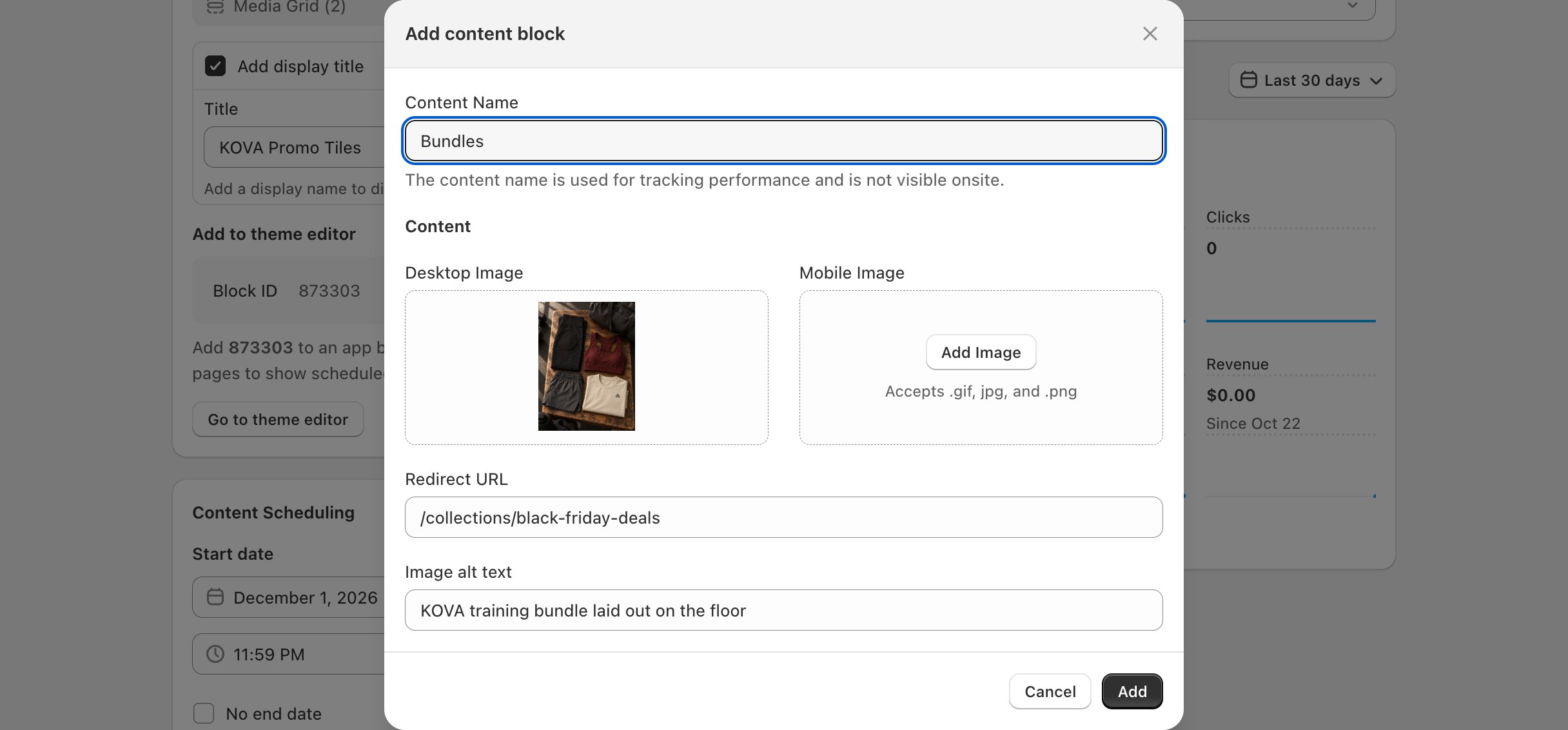
What you set in the theme editor
Nothing besides the Block ID. The block follows your theme’s styling.Related
Add a block to your theme
Copy the Block ID and add the block in the theme editor.
Collection Grid
Up to four tiles, each with a heading.