

The six main metrics
These are the numbers you see first on the Scheduler page.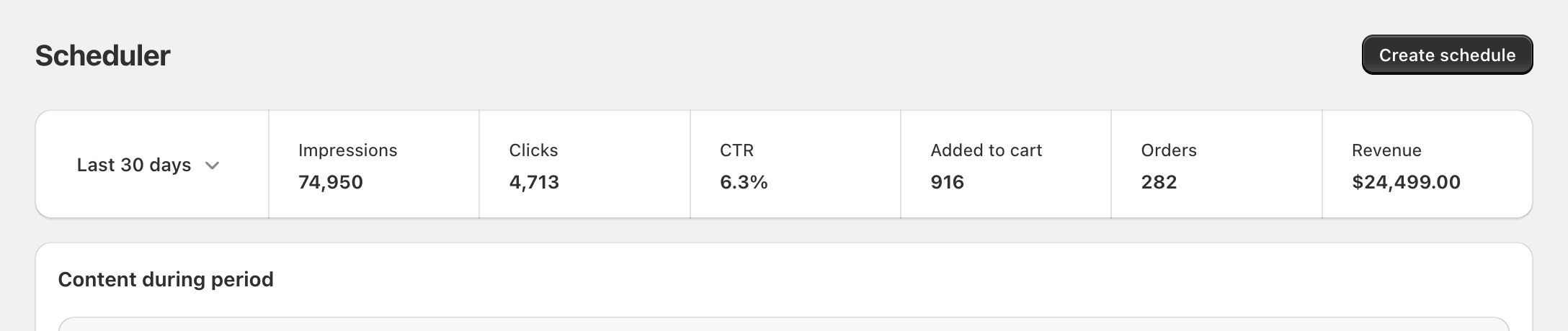
Example data
Every metric
Block Hero has 14 metrics in three groups: Engagement, Purchase intent and Revenue. The column picker in Content during period and the report use the same groups and order. The definition is the text you see when you hover over the metric in the app. “How it’s worked out” says exactly what Block Hero adds up or divides.Engagement
Purchase intent
Revenue
“Once the app embed records it” means once the Block Hero analytics app embed is on in your theme and a shopper’s visit records that data. See When counting starts.
Conversion rate counts sessions, not orders. A shopper who places two orders in one session adds two to Orders but counts as one converted session.
Where you see each metric
See Reports and where to find them.
How attribution works
Block Hero only credits what happens after a shopper clicks one of your blocks. Here is what it counts at each step of a shopper’s visit.What counts as an impression
- A piece of content counts as one impression when at least 20% of it is on the shopper’s screen. There is no minimum time.
- It counts once per page view. Scrolling away and back on the same page doesn’t add another impression. Opening the page again does.
- When a block shows several pieces of content, such as cards in a grid or slides, each one counts on its own when it comes into view.
- In a connected theme section, each card counts on its own. If Block Hero can’t find the cards on the page, the whole section counts every card at once when it comes into view.
What counts as a click
- A click anywhere on a piece of content counts as a click for that content.
- Clicking the same content again on the same page doesn’t add another click. Clicking it again after opening another page does.
- In a connected theme section, a click on a card counts for that card. A link in the section that isn’t a card, such as a “Shop all” link, counts as the Section Header. In a block’s report the Section Header has its own row in By content. In Content during period its clicks count toward the block’s total.
How a session is credited
1
A click starts a session
The shopper clicks content in one of your blocks. That click starts a session, and the session belongs to that block and that content. The session counts on the day of the click.
2
Block Hero follows the visit
While the session lasts, Block Hero counts every page the shopper opens, the product pages among them, and each time they add a product to their cart. It needs the Block Hero analytics app embed on in your theme for this.
3
The cart remembers the session
The click also saves the session on the shopper’s cart. That’s how Block Hero knows which block to credit when the shopper reaches checkout and places an order.
4
Checkout and the order
When the shopper fills in a checkout step, the session counts as Reached checkout. When they place an order, Block Hero asks Shopify to confirm it. It counts the order only if Shopify has it and it carries the same session. Revenue and AOV use Shopify’s own amounts for that order.
5
The session ends after 30 minutes without activity
Every page, add to cart, checkout step and repeat click on the same content keeps the session going for another 30 minutes, as Shopify sessions do. After 30 minutes with no activity the session ends. Anything after that, including an order, isn’t credited to the block.
Clicking a second block
- If the shopper clicks a different piece of content, in the same block or another one, a new session starts and belongs to that content. The cart switches to the new session, so a later order is credited to the new content.
- The first session still counts. Whatever happened in it before the second click stays credited to the first content.
- Clicking the same content again keeps the same session. It doesn’t add a session.
- Each order is credited once, to one block and one piece of content. It’s never split or counted twice.
What isn’t counted
- Test orders. Shopify test orders aren’t counted, except on development stores.
- Shoppers who decline analytics. Nothing is counted for a shopper until they allow analytics in your store’s cookie banner. See Shoppers who decline tracking.
- The theme editor and theme previews. Views and clicks there aren’t counted.
- Refunds and returns. They don’t change Orders, Revenue or AOV. An order counts with the amounts it had when it was placed.
Added to cart counts adds that happen without reloading the page, such as a cart drawer or a pop-up. Most themes add to cart this way, including Dawn and Horizon. If your theme reloads the page to add a product, those adds aren’t counted, though Reached checkout and Orders still are.
Worked example
The numbers below are made up to show how one day adds up. On the KOVA store, the KOVA Hero Banner block shows the content Off Season, and the KOVA Collections block shows Leggings.- Ten shoppers scroll past KOVA Hero Banner, and at least 20% of Off Season comes on screen for each. Impressions: 10.
- Shopper A clicks Off Season. Clicks: 1. Sessions: 1. Shopper A lands on the Off Season collection, opens two products and adds a hoodie to the cart from the cart drawer. That’s 3 Pageviews, 2 Products viewed and 1 Added to cart.
- Shopper A fills in an email at checkout (Reached checkout: 1) and pays. The order is $120: $100 of products after a discount, $10 shipping and $10 tax. KOVA’s prices don’t include tax, so AOV leaves the tax out. Orders: 1. Revenue: $120. **AOV**: $100.
- Shopper B clicks Off Season (Clicks: 2, Sessions: 2), then five minutes later clicks Leggings in KOVA Collections. A new session starts for Leggings. Shopper B buys a pair of leggings, so that order goes to Leggings, not Off Season.
- Shopper C clicks Off Season (Clicks: 3, Sessions: 3), leaves for an hour, then comes back and buys. The session ended after 30 minutes, so the order isn’t credited to any block.
When you see a dash
A dash in place of a number means one of these:- There is nothing to divide by, for example a CTR with no impressions.
- Block Hero hasn’t started counting that metric for your store yet. Hover over it to see why. See When counting starts.
- Analytics couldn’t load. The tooltip says Analytics are temporarily unavailable. Content is unaffected. Your schedules keep running. Try again later.
Related
Reports
Date ranges, tables and the report view.
Compared to Shopify
How each metric lines up with Shopify Analytics.