

Content and schedule statuses
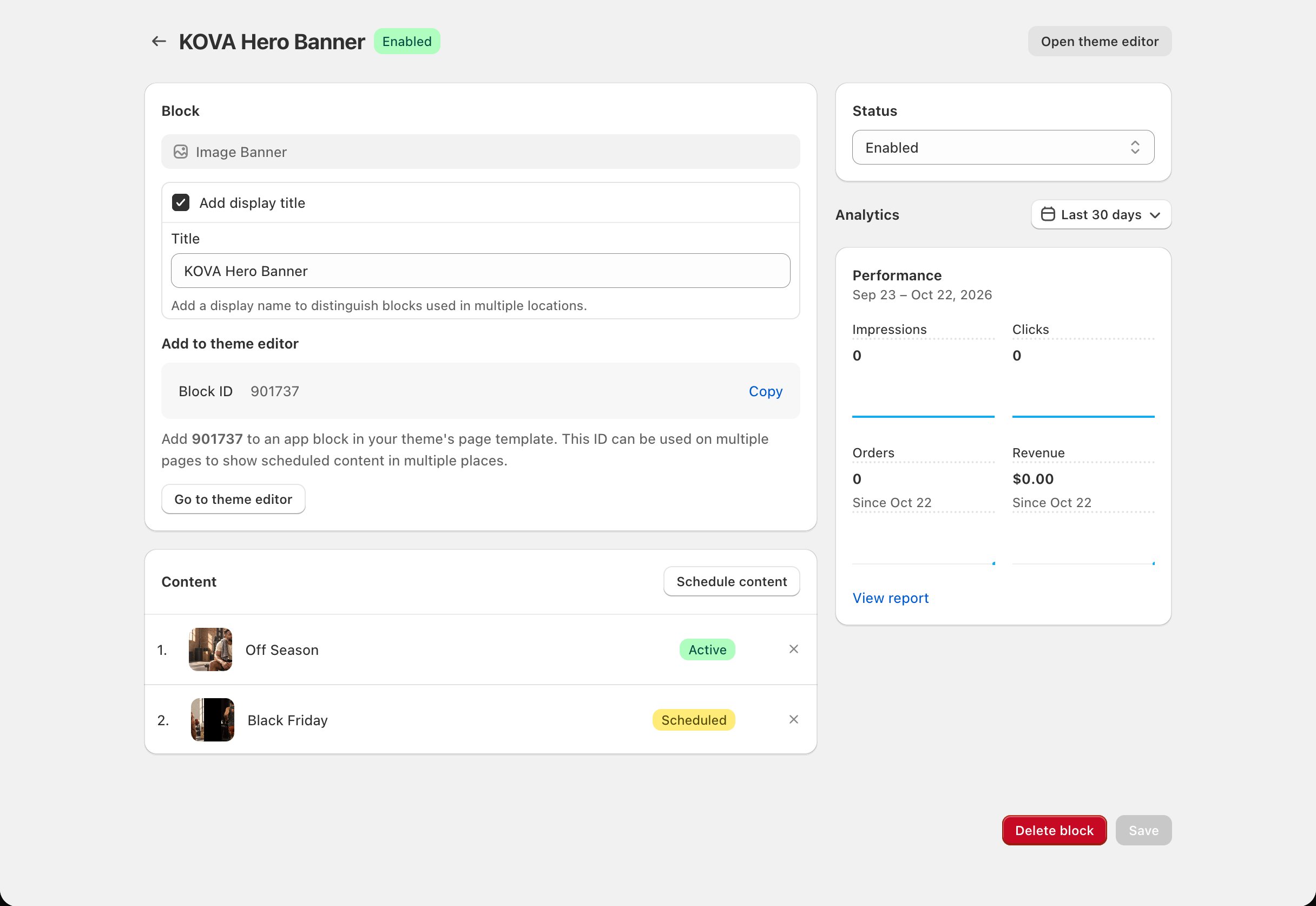
Every schedule, and every piece of content on Image Banner and Media Banner blocks, has a status badge on the block’s page. Block Hero sets it from the dates.
Every badge colour in Block Hero is listed in Badges and colours.
The Inactive card
Content and schedules that have ended move to the Inactive card at the bottom of the block’s page. On Image Banner and Media Banner blocks, content you set to Inactive by hand moves there too. The card starts collapsed. Click the arrow to open it. If a block has many past schedules, click Show more content to see older ones. Nothing in Inactive shows on your store. You can bring something back from there. See Edit, restore or delete.Date badges on the Scheduler
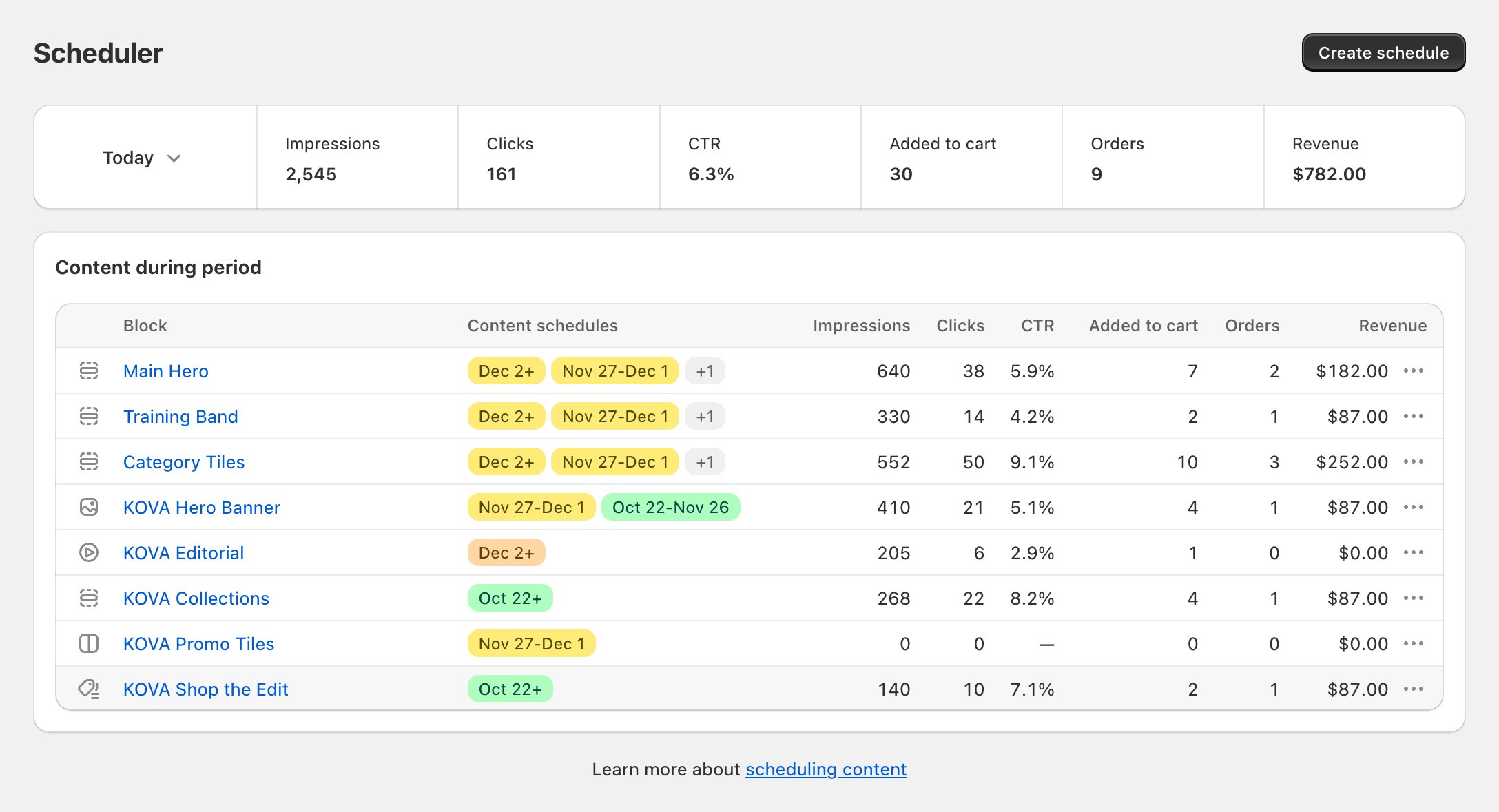
On the Scheduler, the Content schedules column shows each block’s schedules as date badges, such as Oct 1-Oct 14. A schedule with no end date shows a plus sign, such as Oct 1+.
The column shows schedules that fall in the period you picked at the top of the page, plus every upcoming schedule. Up to two badges show. Hover over + and a number to see the rest.
Example data
Block statuses
Next to the block’s name on its page:- Enabled or Disabled shows whether a Block Hero block is turned on. See Turn a block on or off.
- Not published means your last change didn’t reach your store. See Troubleshooting publishing.
Setting a status by hand
On Image Banner and Media Banner blocks (and custom blocks), you can override the dates for one piece of content. Click the content’s name to open it, change Status in the sidebar, then click Save. Media Grid (2), Collection Grid and Collection List don’t offer it, because those blocks always follow their dates on your store.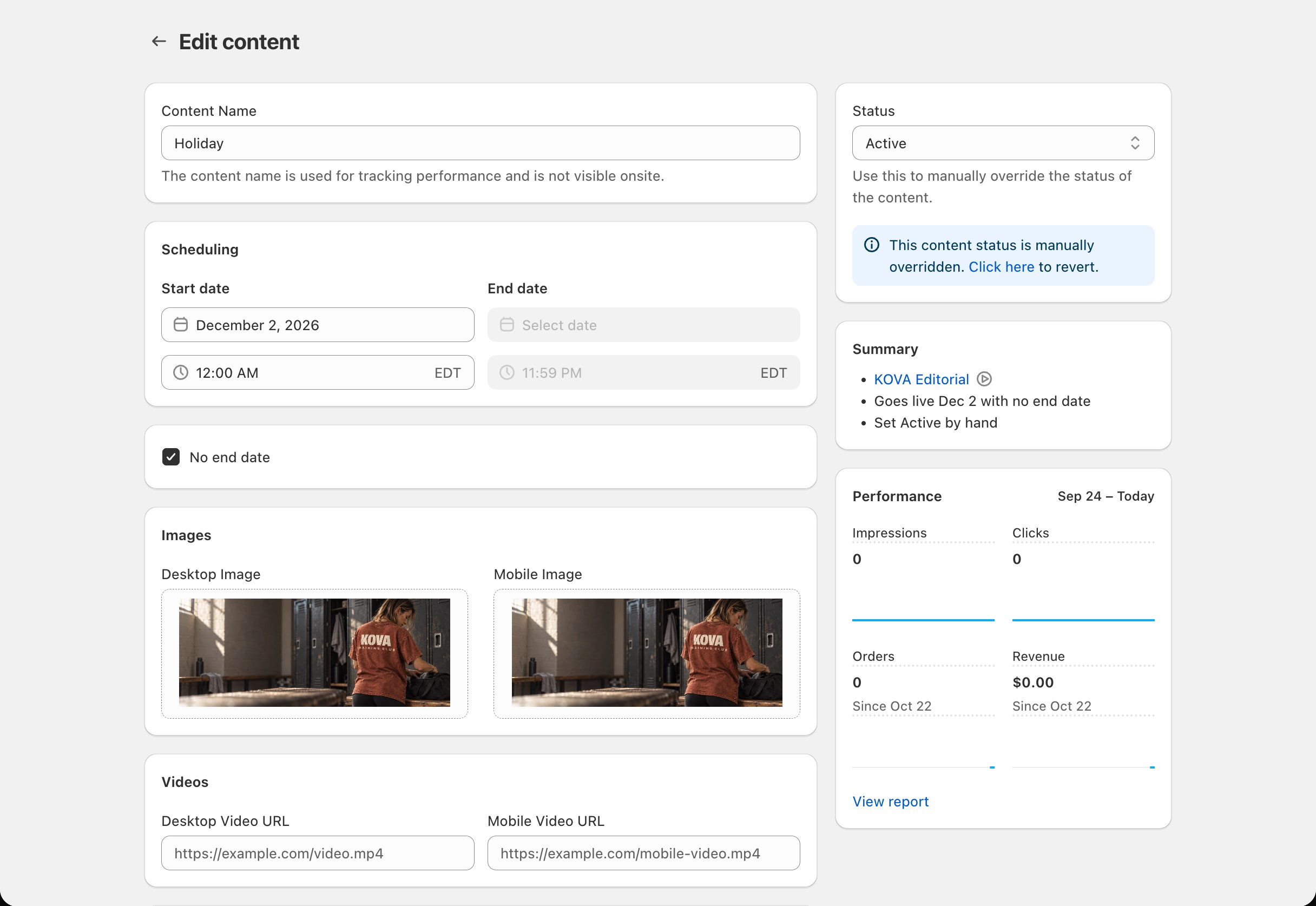
- On the block’s page, click Return to schedule in the banner.
- Or open the content and, in the Status card, click Click here to revert. Then save.
Theme section content has no Status setting. On theme sections and on Media Grid, Collection Grid and Collection List blocks, change the schedule’s dates instead.