

Why it matters
Without the app embed:- Theme sections count nothing. Impressions and clicks on connected theme sections are counted by the app embed, so they stay at zero.
- What happens after a click isn’t counted. Added to cart, Reached checkout, Pageviews and Products viewed show Not counted yet, with the note: Block Hero starts counting this once its analytics embed is on in your theme.
Switch on the app embed
1
Open the theme editor
In your Shopify admin, go to Online Store > Themes. On your live theme, click Customize.
2
Open App embeds
In the theme editor sidebar, click the App embeds icon.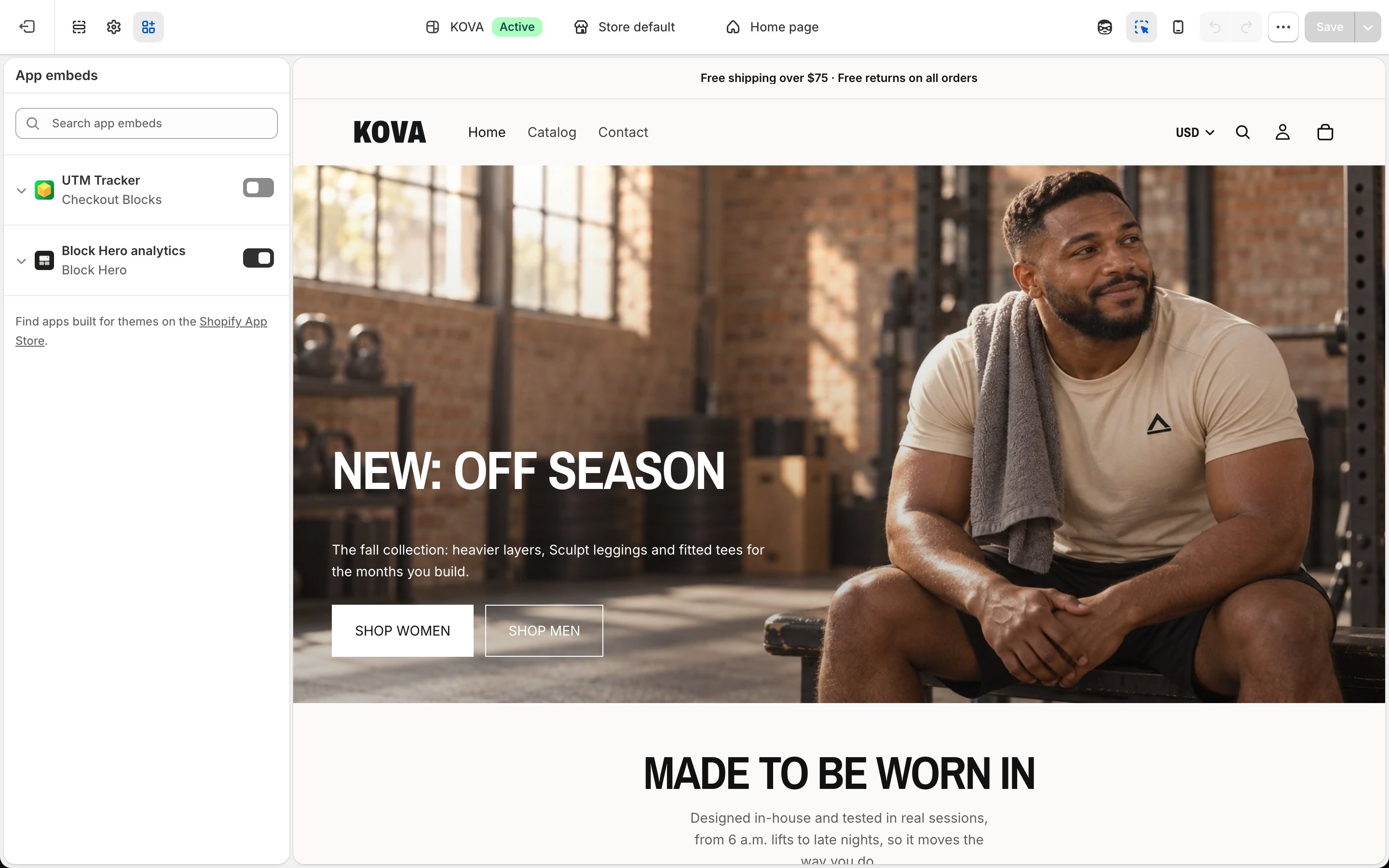
3
Turn on Block Hero analytics
Find Block Hero analytics and switch it on.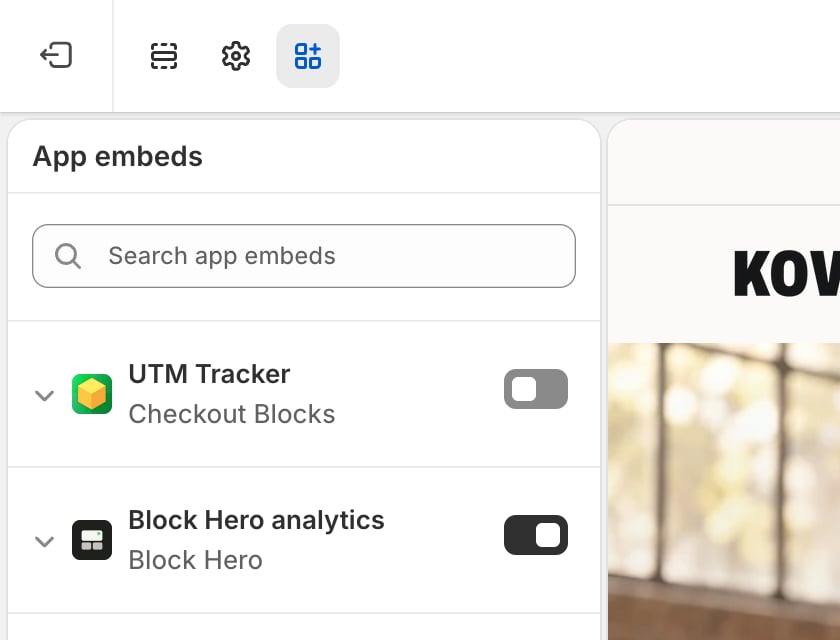
4
Save
Click Save in the top right of the theme editor.
The app embed only applies to the theme you switch it on in. If you publish a different theme later, switch Block Hero analytics on in that theme too.