

1
Open the section's page
Go to Blocks and click the section in the Theme sections card. A section that still needs linking shows Needs you.In the Theme connection card, Finish in the theme editor lists what to link, with a count of how many settings are connected so far. Each row shows:
- The card, such as Card 1, Card 2 or Section settings. A section with a single card shows the section’s name instead.
- The settings to link on that card.
- The Entry to pick for it, named the way the theme editor shows it, such as Main Hero · Card 1.
2
Open the theme editor
Click Open theme editor. Your live theme opens in the theme editor on the page the section is on. Header and footer sections open on the home page.
3
Connect each setting to its Block Hero entry
In the theme editor, select the section and open each card listed in Block Hero. For each setting on that card’s row: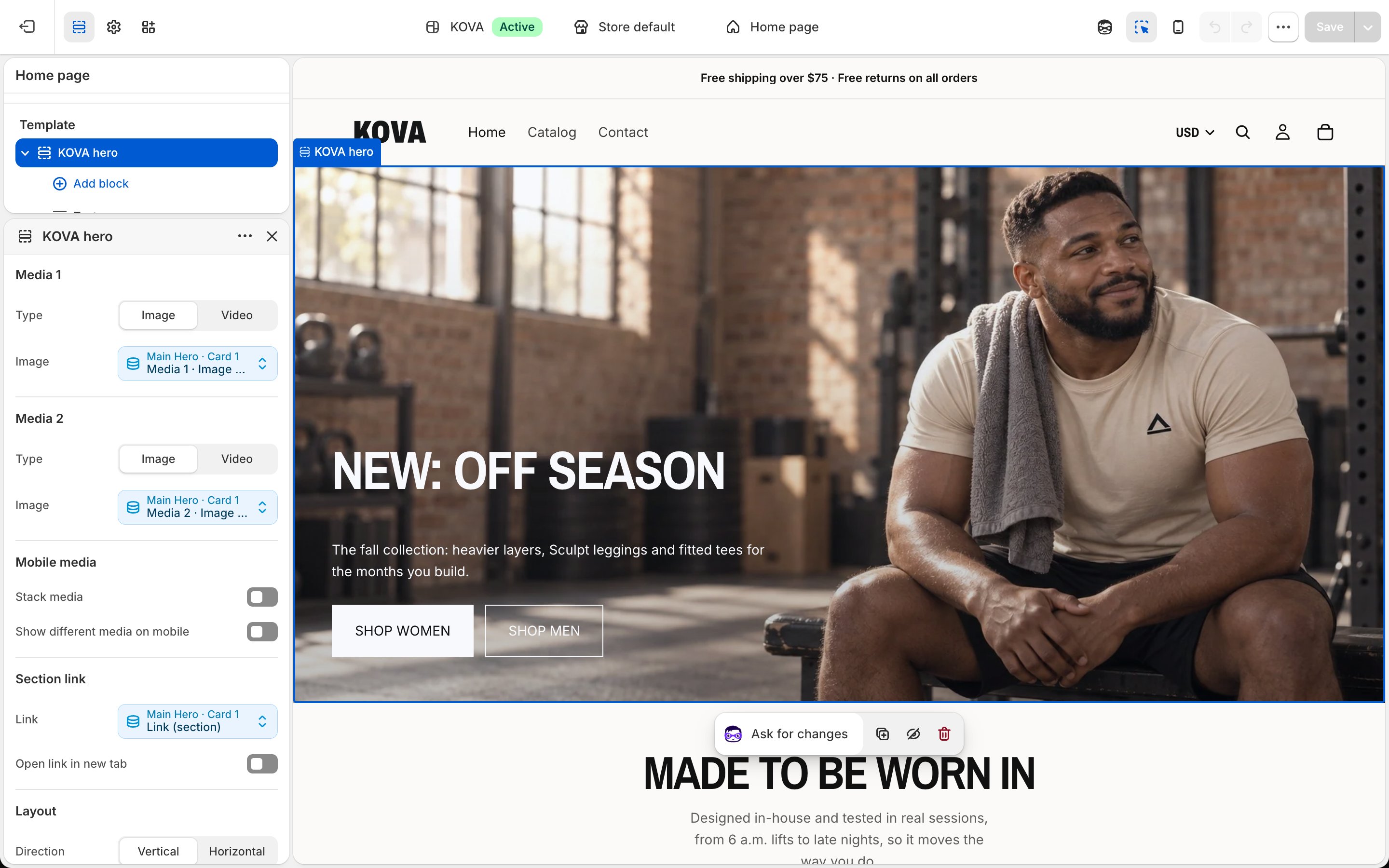
- Click Connect dynamic source on the setting.
- Pick the Block Hero entry shown on that row in Block Hero.
- Pick the field with the same name as the setting.
4
Save in the theme editor
When every card is done, click Save in the theme editor.
5
Check the connection in Block Hero
Back on the section’s page in Block Hero, click Check connection. Each row gets a tick once its settings are linked.When every setting is linked, the status changes to Connected and the Finish in the theme editor list goes away. Your schedules now show on your storefront.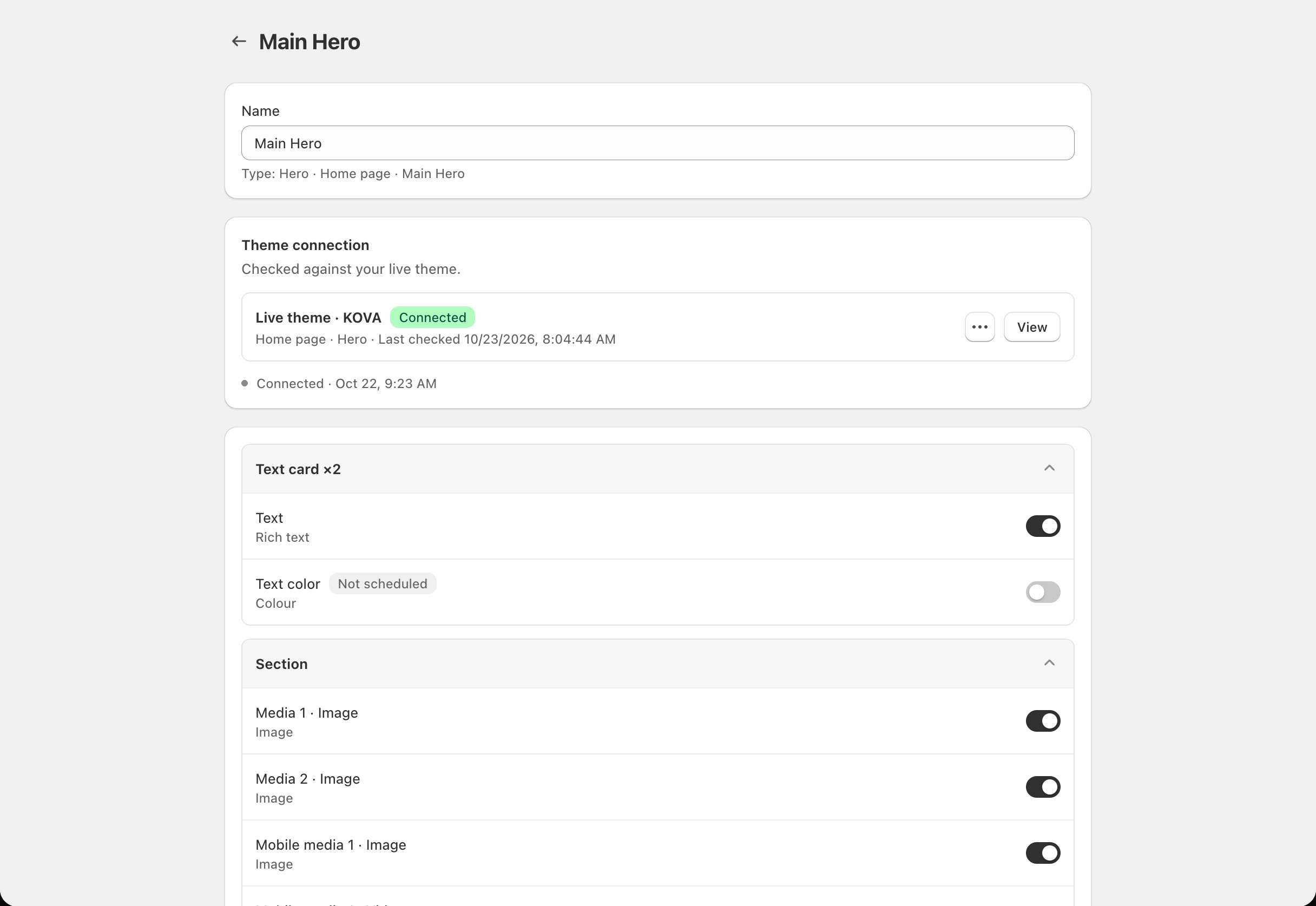
Linking new fields later
If you switch on more fields on the section’s page, Block Hero shows Saved. Connect the new fields in the theme editor. The section shows Needs you again, and Finish in the theme editor lists the new settings. Link them the same way.Related
Choose which fields to schedule
Switch fields on or off.
Connection status
What Needs you means and how to fix it.