

Choose what shows between schedules
1
Open the section's page
Go to Blocks and click the section in the Theme sections card.
2
Pick an option under Section options
In Section options, find Between schedules and pick one: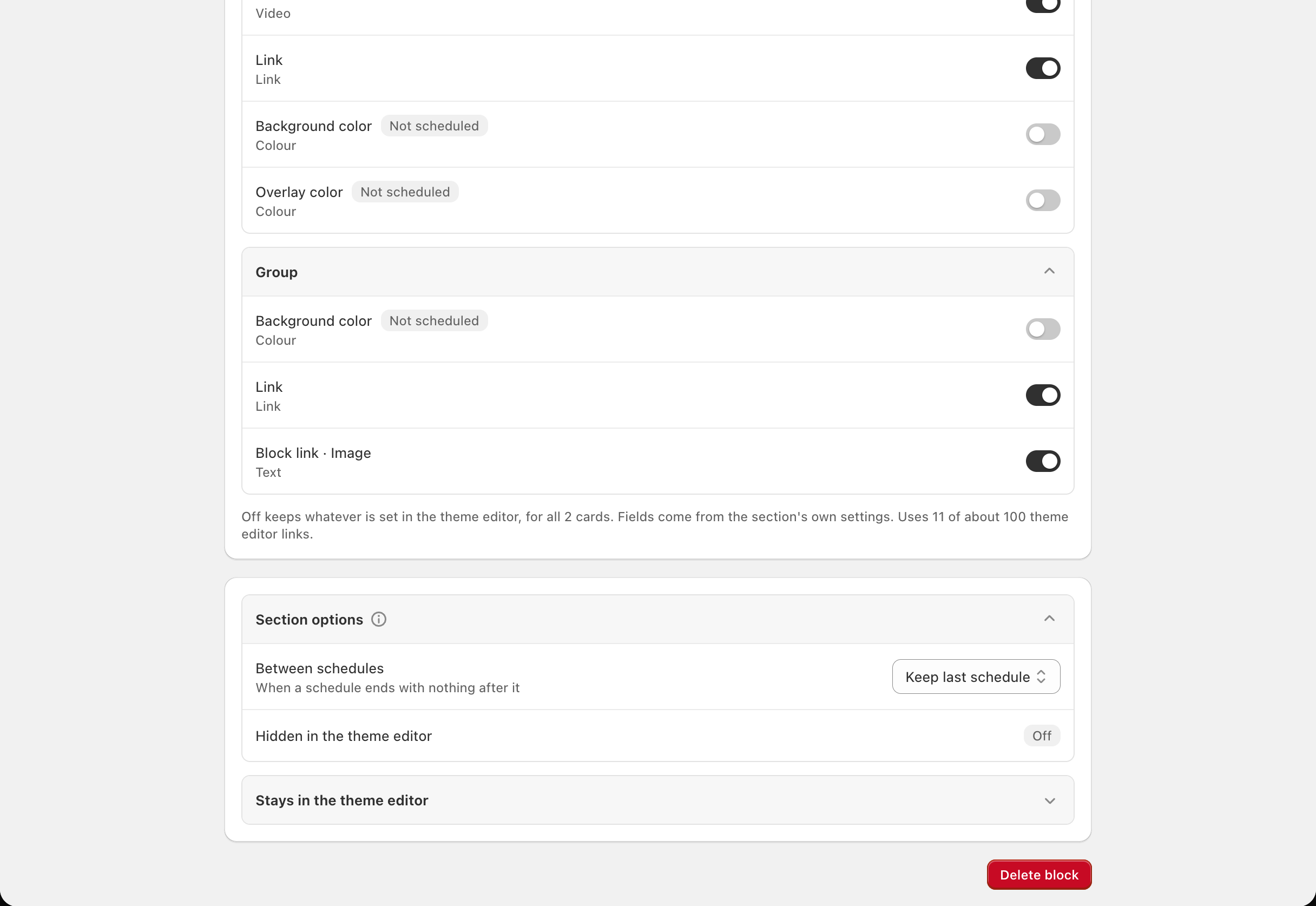
3
Save
Click Save in the save bar. The change shows on your storefront straight away.
Set up the fallback
When you pick Show a fallback, a Fallback row appears below it. Until you change it, the fallback is what the section showed when you connected it. You have two ways to change it:- Use what’s live now: click the more actions button next to Edit, then Use what’s live now. The fallback becomes what the section shows right now.
- Edit: set each card of the fallback by hand.
Edit the fallback by hand
1
Open the Fallback page
Click Edit on the Fallback row. The Fallback page lists the section’s cards under Fallback content, with a Section Header row first if the section has its own heading or text. There are no dates: the fallback shows whenever nothing is scheduled.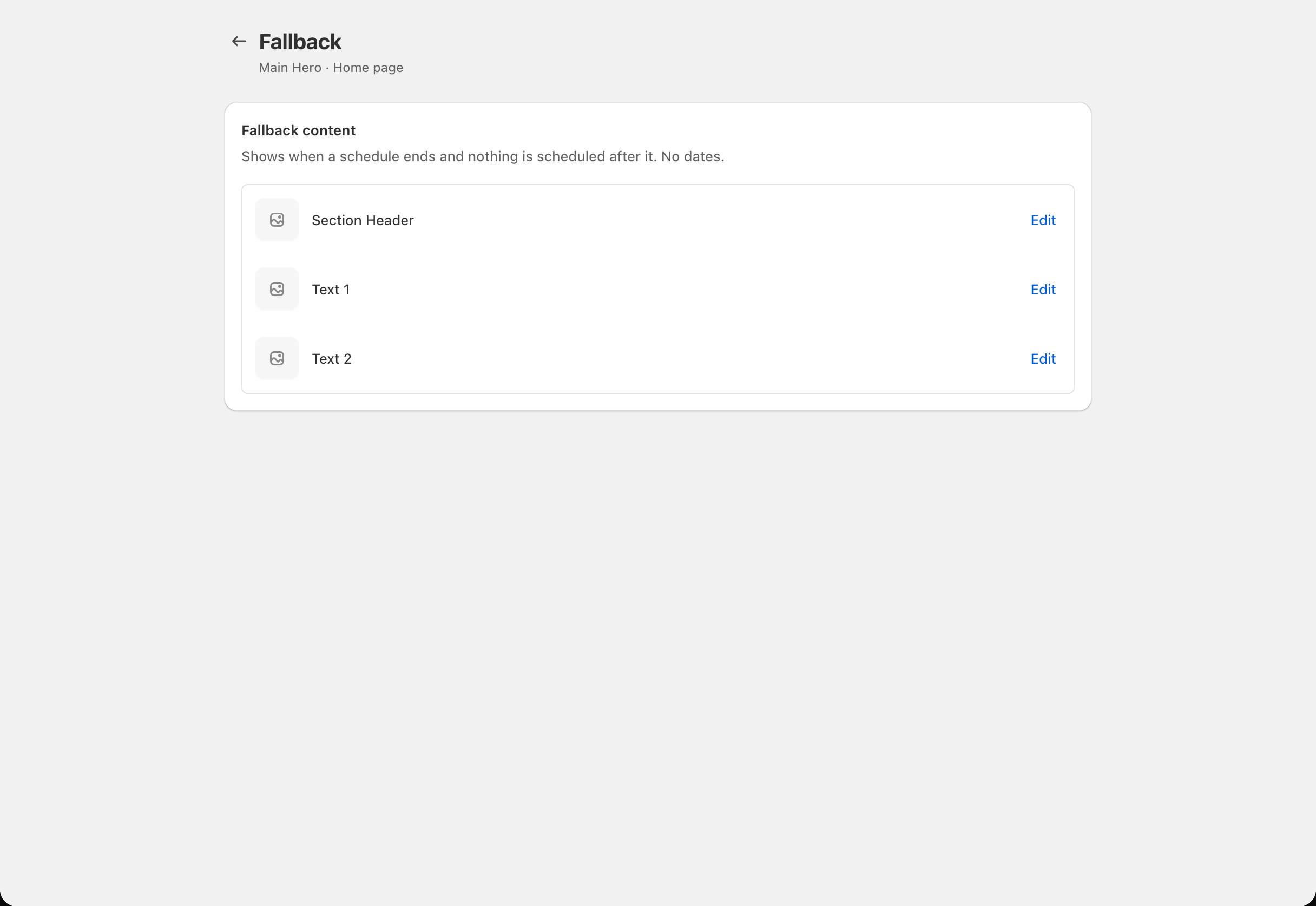
2
Edit each card
Click Edit on a row, change its fields, then click Done.On a collection card, Use the collection’s image and title shows the collection’s own image and title from Shopify. If you change them in Shopify later, the fallback shows the new ones. It’s on for collection cards in a new fallback. Turn it off to pick your own image and title.
If the collection has no image in Shopify, the card shows no image. Add one to the collection in Shopify, or turn the option off and pick one here.
3
Save the fallback
Click Save in the save bar. You’ll see Fallback saved and go back to the section’s page.
Hidden in the theme editor
Section options also shows Hidden in the theme editor, with an On or Off badge. It tells you whether the section is hidden in your live theme. Block Hero only shows this; to hide or show the section, use the theme editor.Related
- When content goes live
- Disconnect a theme section: you can keep the fallback showing when you disconnect.