

1
Install from the Shopify App Store
Find Block Hero in the Shopify App Store and click Install. Shopify asks you to approve the app’s access to your store. Approve it to finish installing.
2
Open Block Hero from your Shopify admin
In your Shopify admin, go to Apps and choose Block Hero. The app opens inside your Shopify admin.If you open Block Hero anywhere else, it shows Open Block Hero from your Shopify admin. Go back to your Shopify admin and open it from Apps.
3
Choose a plan
Go to Plans and pick the plan that fits your store. Shopify asks you to approve the charge. Until your store has a plan, Block Hero shows Choose a plan to keep using Block Hero at the top of each page.See Plans for what each plan includes and how the free trial works.
What’s in the menu
Block Hero adds three pages to the menu under Apps in your Shopify admin: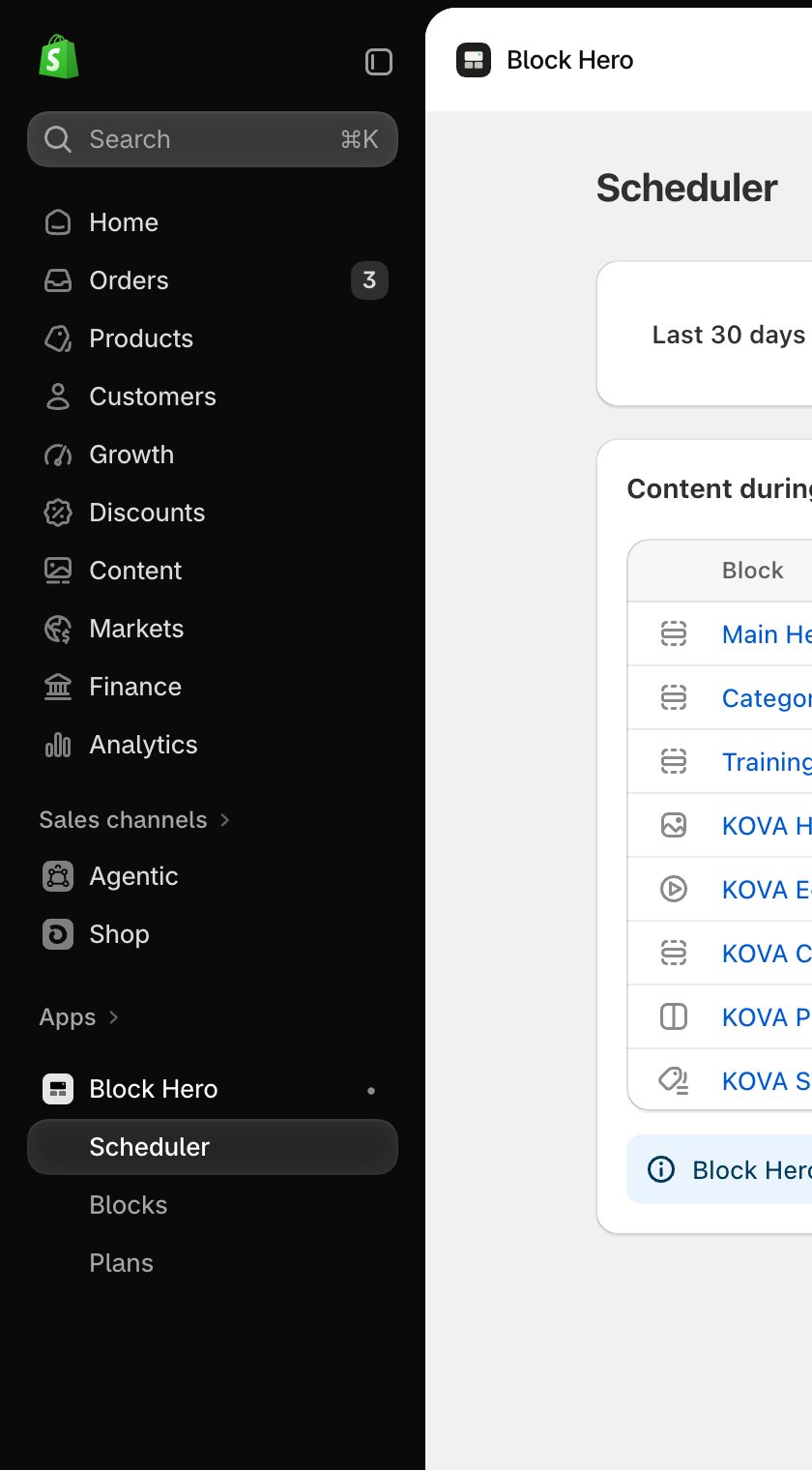
Next steps
Turn on analytics
Switch on the app embed so Block Hero can count your results.
Schedule your first block
Pick a theme section or a Block Hero block and give it dates.