

1
Open the section's page
Go to Blocks and click the section in the Theme sections card. You can also click Edit fields on the block page in the Scheduler.
2
Switch fields on or off
Fields are grouped the way the section is built: one group for the cards (for example Collection card ×4) and one for the settings of the whole section. Under each field you see its type. A field that appears on only some cards says so, for example 2 of 4 cards.A field that is switched off shows Not scheduled.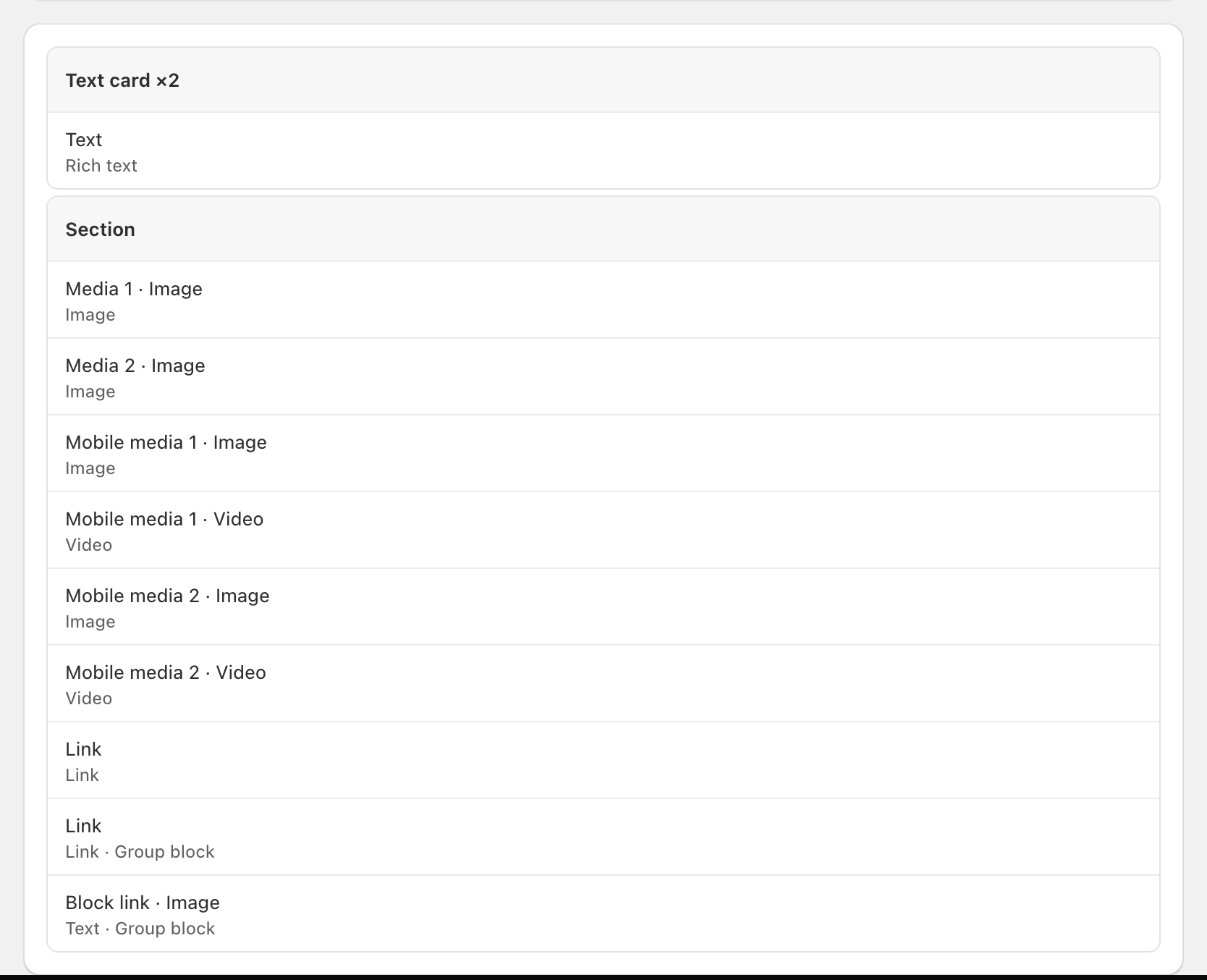
3
Save
Click Save in the save bar at the top of the page.
When you switch a field on
Block Hero adds the field and fills it with what the section shows today, so nothing changes for shoppers yet. Then it asks you to link the new field: you’ll see Saved. Connect the new fields in the theme editor. and the section shows Needs you until you do. Follow Link fields in the theme editor.When you switch a field off
Block Hero stops scheduling it. The field keeps showing its current value. If the setting is still linked to Block Hero in your theme, you can’t change it in the theme editor yet. The field shows Still linked to Block Hero. Unlink it in the theme editor to set it there. and the Theme connection card lists it under Unlink. To finish:- Click Open theme editor.
- On each setting listed under Unlink, remove the dynamic source.
- Set the value by hand and click Save in the theme editor.
- Back in Block Hero, click Check connection. The Unlink row goes away once nothing links to Block Hero.
When the theme changes which cards show a field
In the theme editor you can show or hide a setting on some of a section’s cards. When that changes for a field you schedule, the section’s page shows The theme changed which cards show some fields with an Update fields button. Click Update fields to schedule the field on the cards that show it now. Cards that newly show it start with today’s value from the theme.What stays in the theme editor
Open Stays in the theme editor at the bottom of the section’s page to see the settings Block Hero doesn’t schedule, such as layout and colours. Change those in the theme editor as usual. Click Edit in theme editor to go there.If saving doesn’t work
Keep at least one field switched on.
Keep at least one field switched on.
A connected section needs at least one scheduled field. To stop scheduling the section completely, disconnect it instead.
The section's cards changed in the theme editor. Check the connection, then try again.
The section's cards changed in the theme editor. Check the connection, then try again.
The section’s cards in the theme editor no longer match the ones Block Hero connected. Open the Theme connection card’s menu, click Check connection, then save again.
An image, collection or product this field shows couldn't be found in your store.
An image, collection or product this field shows couldn't be found in your store.
Block Hero couldn’t find an image, collection or product this field shows. Pick a different one in the theme editor, then try again.