

The five blocks
Create a block in Block Hero
1
Open Add block
Go to Blocks and click Add block. In the Add a block window, choose Block Hero block.You can also start from Scheduler: click Create schedule, then Add a Block Hero block.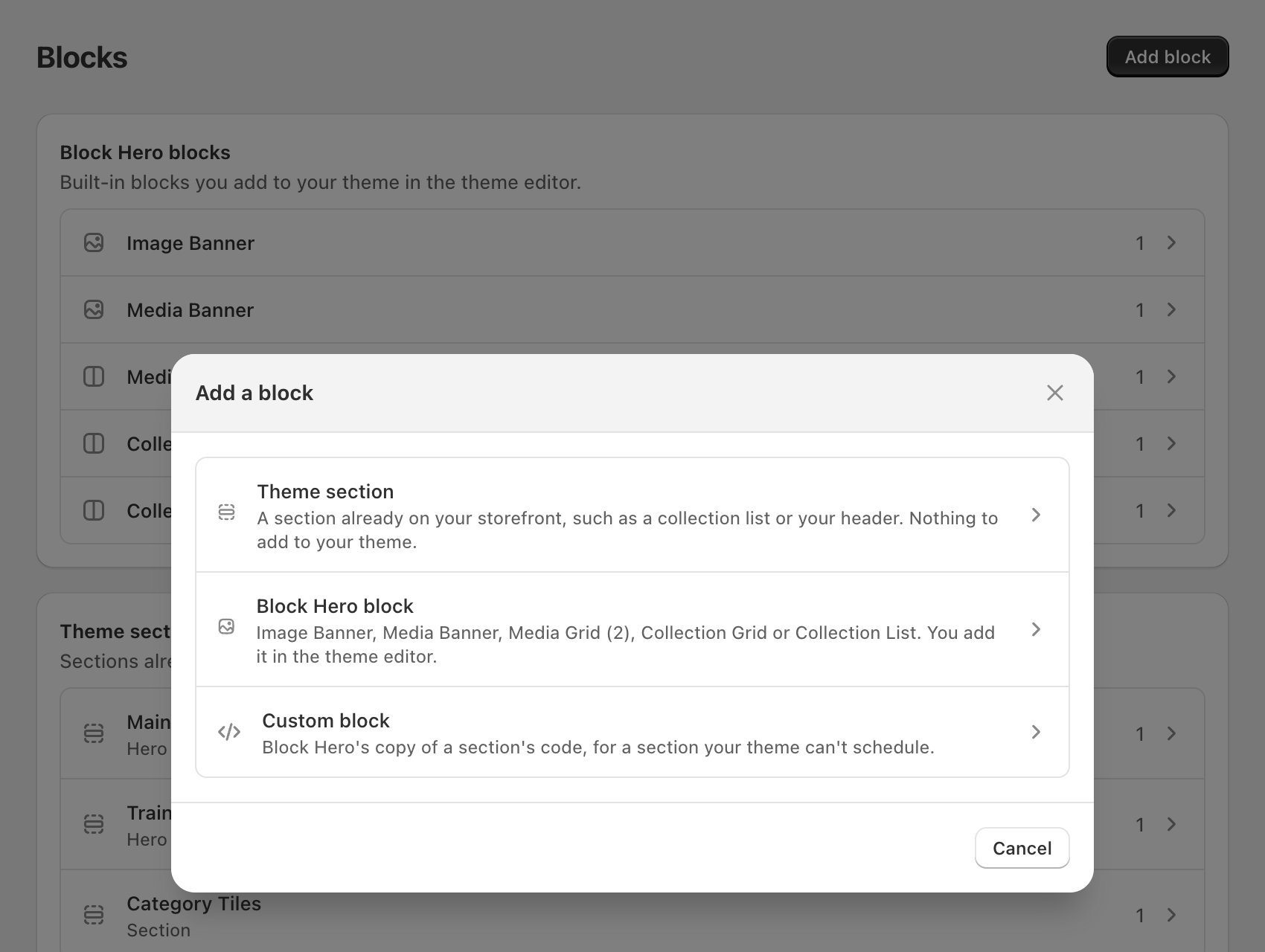
2
Pick a block
The Add a Block Hero block page shows a tile for each block. Click one to open its page.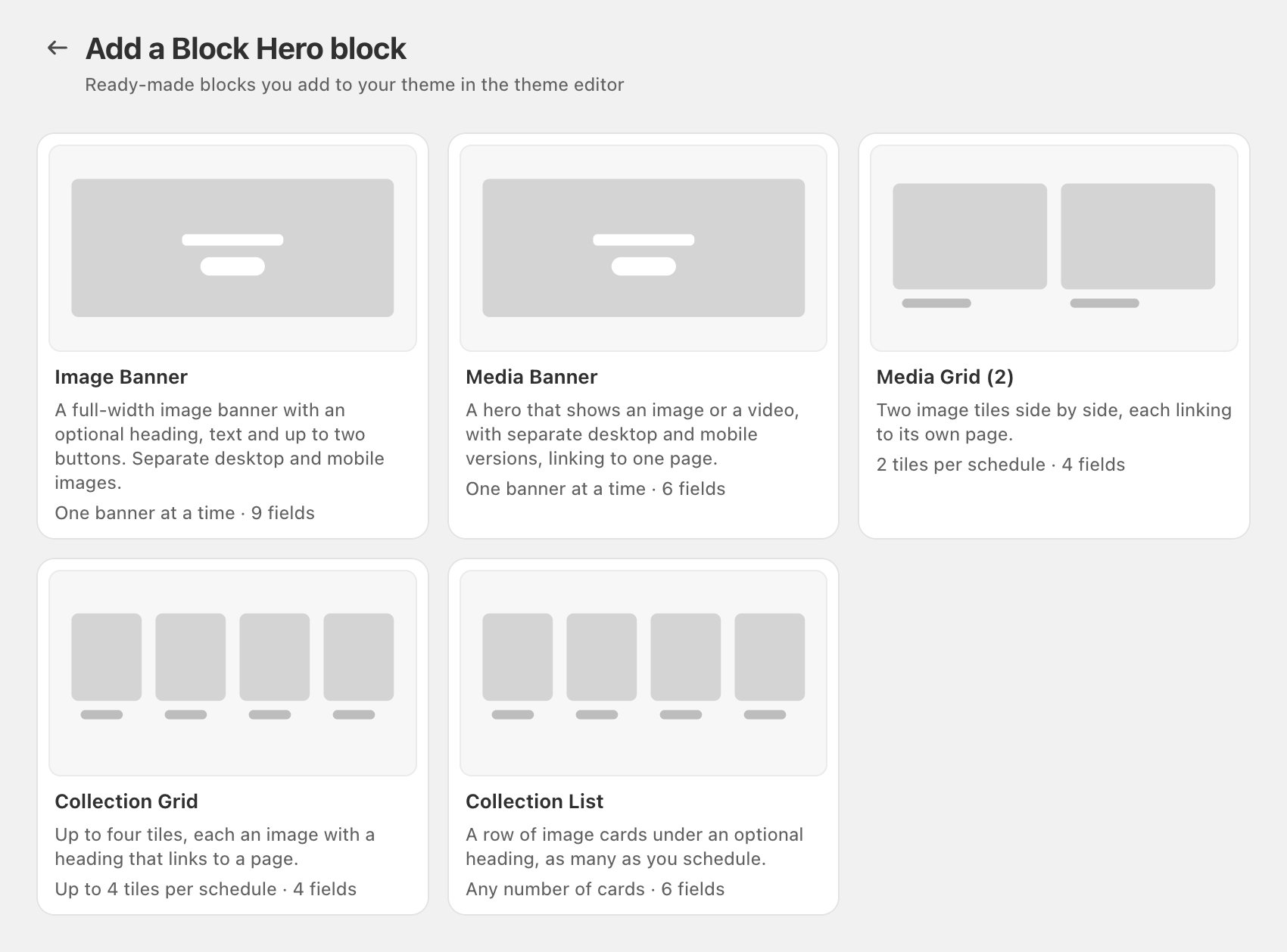
3
Click Use this block
The block’s page shows a preview, a description and Details. Click Use this block.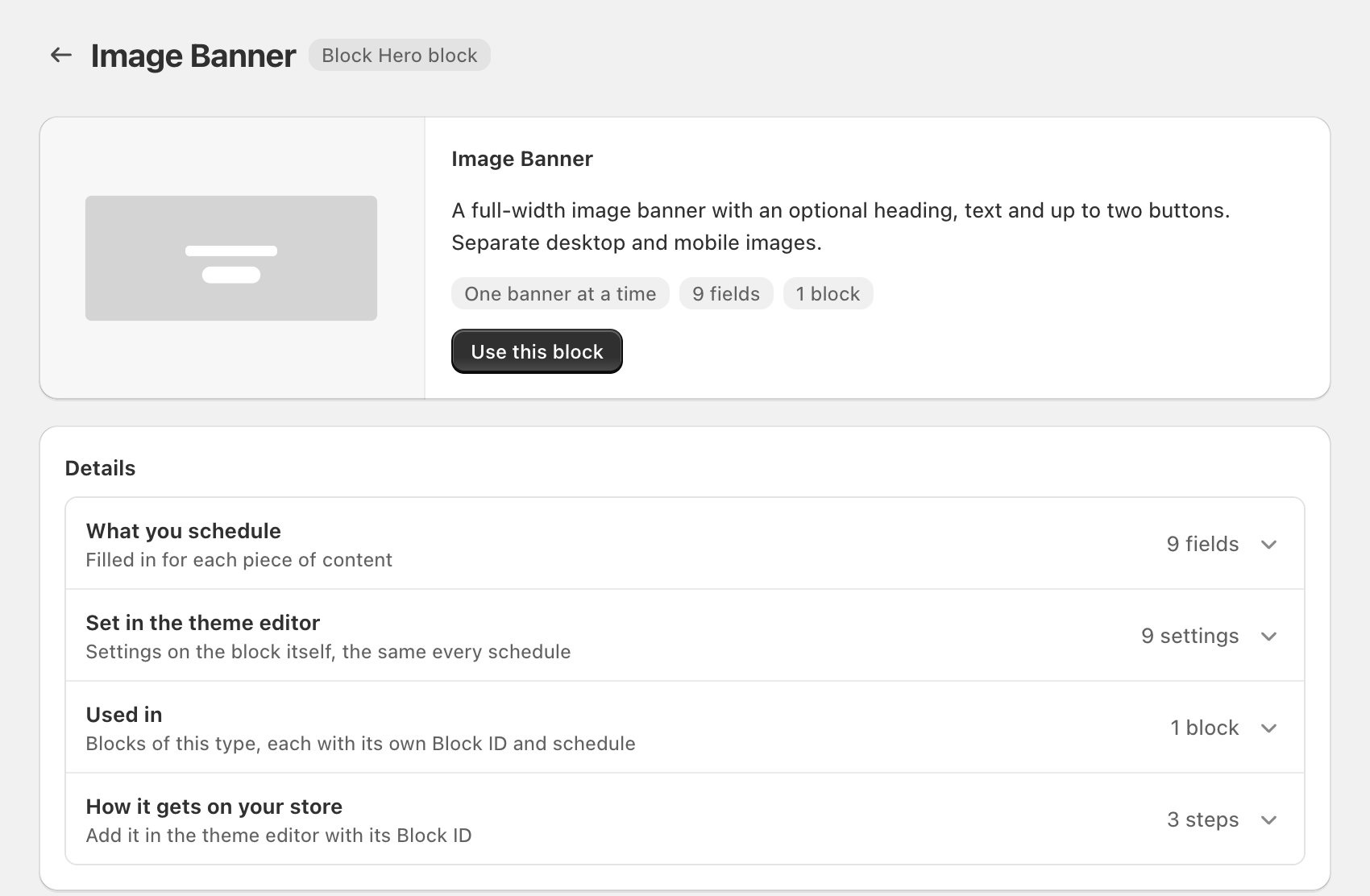
4
Name it and save
The Create schedule page opens with your block picked under Block. If you’ll use more than one of the same block, tick Add display title and give it a Title so you can tell them apart.Click Save. Block Hero shows Save this block before adding it to a page template until you do, because the Block ID is only created when you save.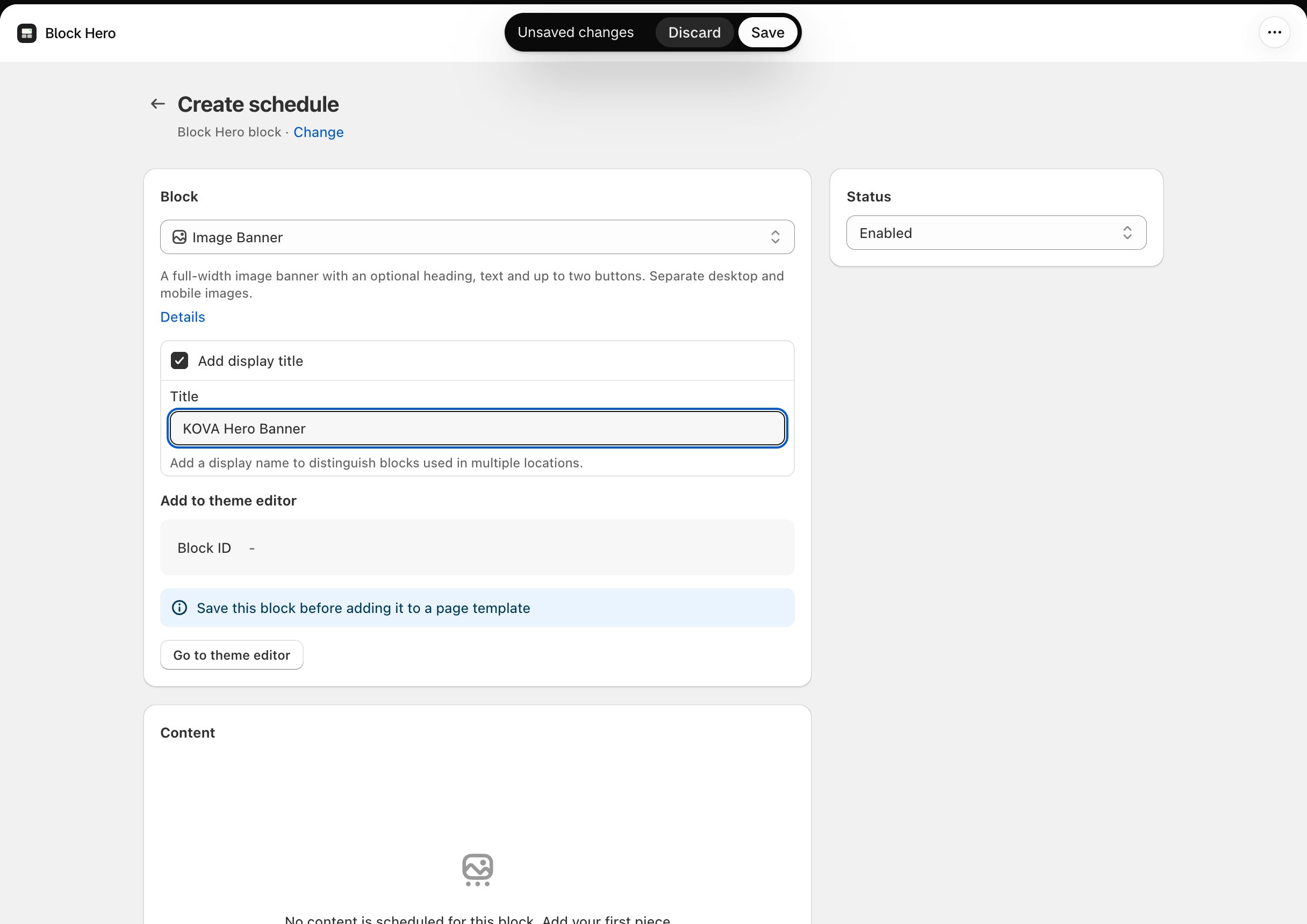
5
Copy the Block ID
After saving, the block’s page shows its Block ID under Add to theme editor. Click Copy. Block Hero shows Block ID Copied.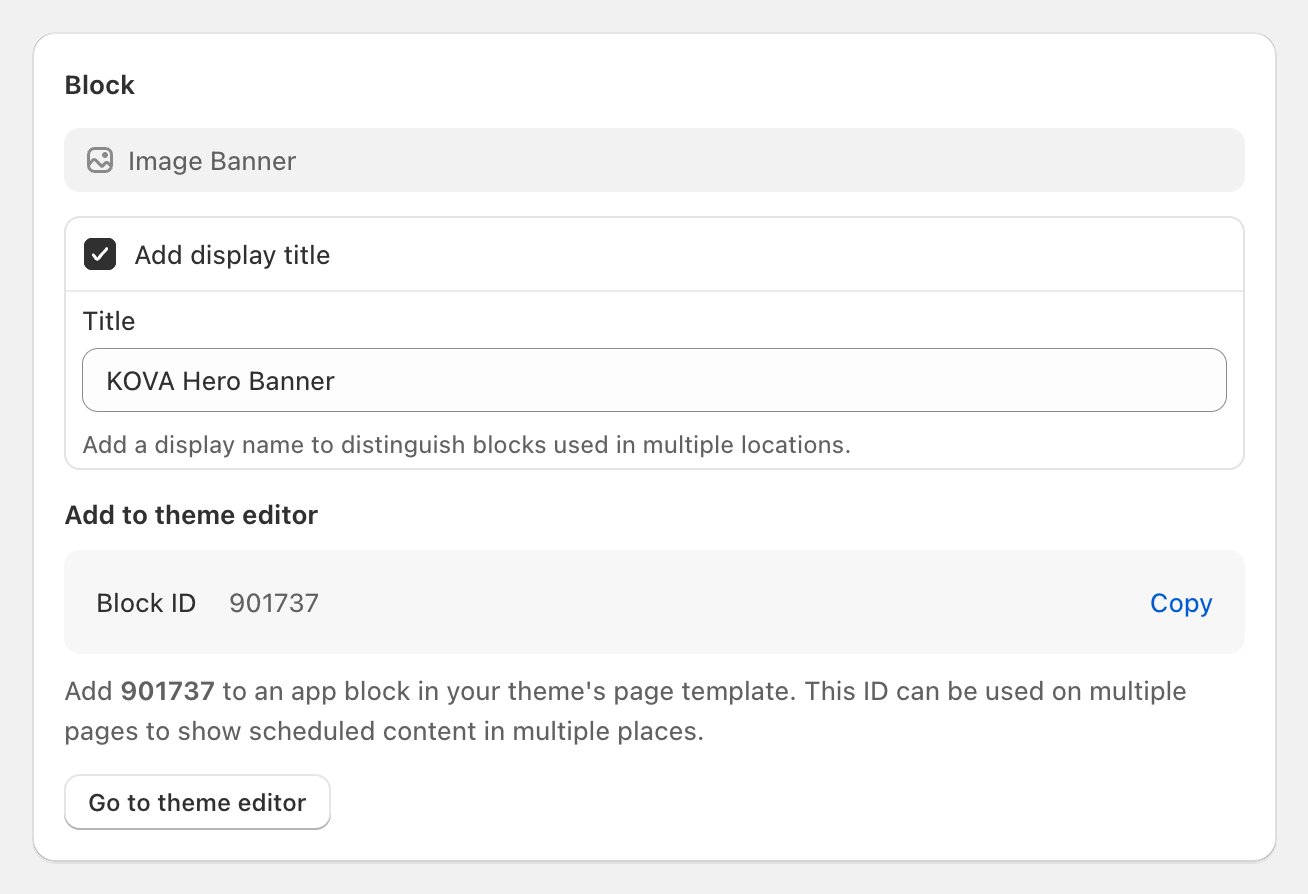
Add the block in the theme editor
1
Open the theme editor
On the block’s page, click Go to theme editor. You can also click Open theme editor at the top of the page.Your live theme opens in the theme editor. Go to the page where you want the block.
2
Add the block
Add a section and look under Apps. Pick the block by its name, for example Image Banner.
3
Paste the Block ID
Select the new block and paste the ID into its Block ID setting. The preview updates to show what’s live on the block now.
4
Save the theme
Click Save in the theme editor.
The block’s page under Blocks
Go to Blocks and click a block in the Block Hero blocks card to open its page. The number next to each block is how many you’ve created. Under Details:- What you schedule: the fields you fill in for each piece of content.
- Set in the theme editor: settings on the block itself, the same for every schedule. Click Edit in theme editor to change them.
- Used in: each block of this type you’ve created, with its Block ID. Click one to open it, or click Add another, for example Add another Image Banner, to create one more.
- How it gets on your store: the three steps above.
How alt text is filled in
Every Block Hero image has an Image alt text field. Alt text describes the image for shoppers using screen readers, and search engines read it too. Block Hero fills it in for you from what you’ve already entered for that image, and shows Auto-filled next to the field. It only uses the image’s link and heading. It never uses the block’s name, the content name, button text or the file name. If the image has neither a link nor a heading, the field stays empty. What it writes- The link goes to a collection or product in your store. Block Hero starts with that collection’s or product’s name, then adds one thing:
- Your heading, if it has words the name doesn’t. A heading in capitals is written in normal case.
- Otherwise, what it sells. For a collection, its main product types, biggest first, never numbers, and leaving out types already in the name. For a product, its product type, unless the product’s name already says it.
- Otherwise, just the name.
- There’s no link, or it goes to another site. Block Hero uses the heading on its own.
Keeping it, changing it
- Hover over Auto-filled to see where the text came from, such as “From the link and your heading.”
- While it says Auto-filled, the text updates by itself when you change the link or heading.
- Type in the field and the text becomes yours. Block Hero won’t change it again. If its suggestion is different from what you typed, Use suggestion appears next to the field to switch back.
- When you open saved content, alt text that still matches the suggestion keeps updating. Anything else is treated as yours.
If the block shows a message in the theme editor
These messages show only in the theme editor. Shoppers see nothing in that spot until the block has something live to show.Add a Block ID to display your content
Add a Block ID to display your content
The Block ID setting is empty. Copy the ID from the block’s page in Block Hero and paste it in.
Block ID not found
Block ID not found
The ID pasted doesn’t match a block in Block Hero. Copy it again from the block’s page.
Incorrect Block Type
Incorrect Block Type
The ID belongs to a different kind of block. For example, an Image Banner ID pasted into a Collection List. Use an ID from a block of the same kind.
Block Disabled
Block Disabled
The block is turned off in Block Hero. See Turn a block on or off.
Nothing is scheduled to show right now
Nothing is scheduled to show right now
Nothing is scheduled to show right now. Create a schedule or check its dates.
When the Block ID is empty, Media Banner, Media Grid (2) and Collection Grid also say Add a Block ID in the block settings. Media Banner says This block ID is not a Media Banner for a Block ID of another kind of block.
Related
Create a schedule
Choose what a block shows and when.
Publishing problems
When a block doesn’t show what you expect.